Human-in-the-Loop: AI Agent Approval Gates Setup Guide
Configure approval gates so AI agents pause before risky actions and wait for human review. Step-by-step setup with Slack, auto-approve rules, and policies.
What you will learn
- Understand why AI agents need human approval gates
- Configure approval policies per agent based on risk level
- Set up auto-approve conditions for low-risk actions
- Handle approval workflows via the dashboard and Slack
- Design approval workflows that do not become bottlenecks
TL;DR — Approval gates are checkpoints where agents pause and ask a human before risky actions. The best gates are narrow (only high-risk actions), contextual (Slack + dashboard), and mostly invisible (auto-approve the 80% that is clearly safe).
Why AI Agents Need Approval Gates
AI agents are powerful — and that is exactly the problem. An agent that can deploy code can also deploy bugs. An agent that can send emails can also send the wrong email to the wrong person. The more capable the agent, the more damage it can do when something goes wrong.
Approval gates are checkpoints where agents pause and ask a human: Should I proceed? They are the difference between an agent that runs autonomously and an agent that runs autonomously within safe boundaries.
Agents run without guardrails. A code review agent auto-merges a PR that introduces a security vulnerability. Nobody knew until production broke.
The agent completes its review and requests approval before merging. A developer reviews the changes, catches the vulnerability, and rejects the merge. Production stays safe.
How Approval Gates Work
- Agent reaches a configured gate (e.g., before deploying code)
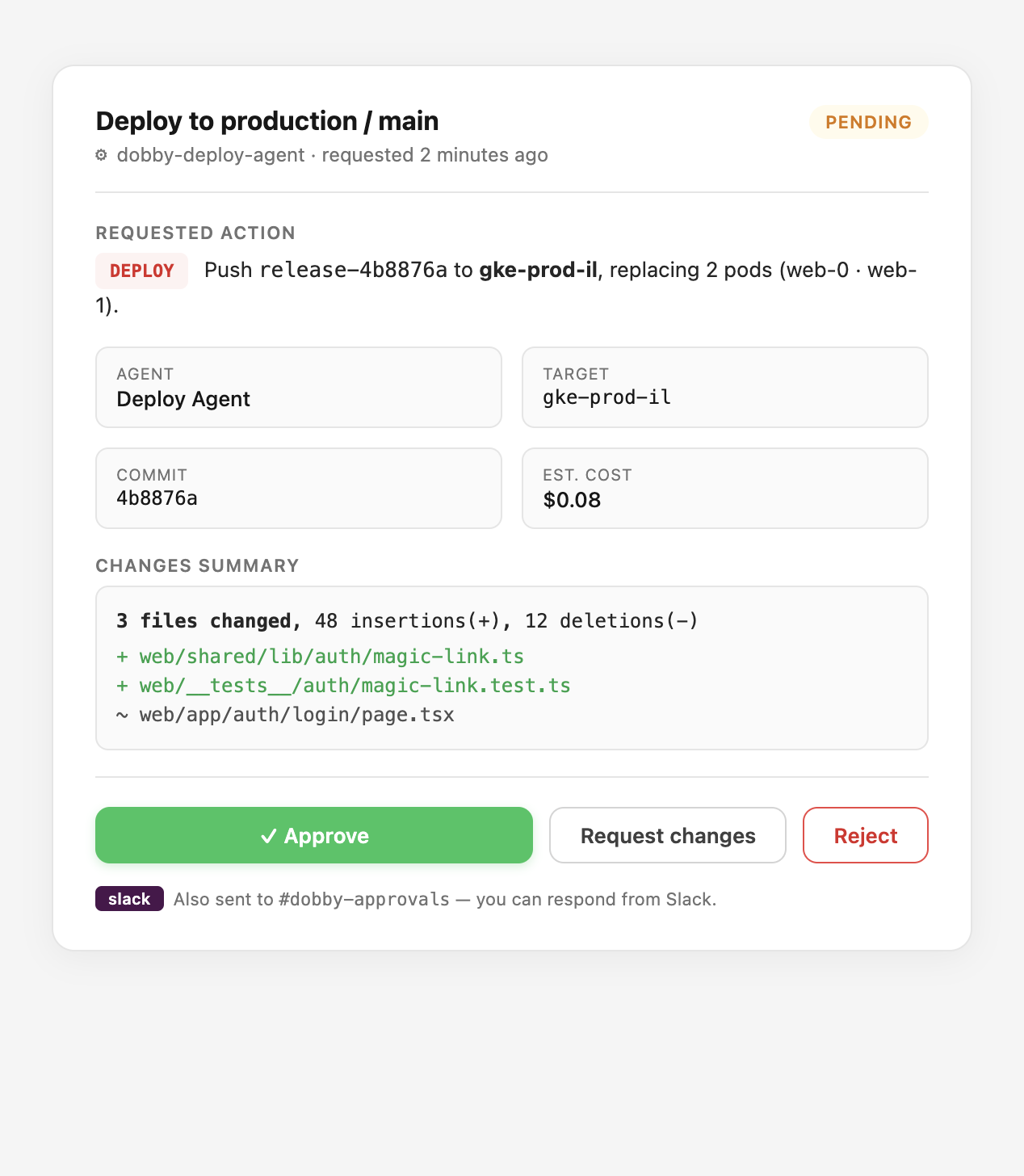
- Agent pauses and creates an approval request with context
- Approvers are notified via dashboard and Slack
- Human reviews and approves, rejects, or requests changes
- Agent resumes (if approved) or stops (if rejected)
- Everything is logged in the tamper-evident audit trail
Picking the Right Gate Triggers
Not every action needs approval. Reading a file is safe. Deploying to production is not. The key is matching the approval level to the risk level of the action.
- Write to production branches, main, or protected paths → always gate
- Any destructive action (delete, drop, revoke, rotate) → always gate
- Cost per action above $1, or cumulative above $25/day → gate
- Any action on regulated data (PII, PHI, PCI) → always gate
- Reads from allow-listed repos, low-cost LLM calls, internal tool queries → auto-approve
In Dobby, each agent has a requires_approval flag and auto_approve_conditions. You can set rules like: auto-approve if the PR has fewer than 50 lines changed and only touches allowed paths. Everything else requires human review.
Auto-Approve for Low-Risk Actions
Requiring approval for everything creates bottlenecks. Smart approval policies define what is safe to auto-approve: small changes (under a threshold), changes to non-critical paths, read-only operations, or actions within budget limits.
// Example: auto-approve conditions per agent
{
  "agent": "dobby-backend-agent",
  "requires_approval": true,
  "auto_approve_conditions": {
    "max_files": 5,
    "max_lines": 100,
    "allowed_paths": ["src/utils/", "tests/"],
    "blocked_paths": ["src/auth/", "deploy/", ".env"]
  }
}
Slack Integration
Approvers should not have to watch the dashboard. When an agent requests approval, a Slack notification is sent with context, and the approver can approve or reject directly from Slack using interactive buttons.
Dobby sends approval requests to a dedicated #dobby-approvals Slack channel with interactive Approve/Reject buttons. Approvers do not need to leave Slack. Every response is logged.
Approval Statuses
- Pending — waiting for human review
- Approved — human approved, agent resumes
- Rejected — human rejected, agent stops
- Expired — no response within the timeout window
- Cancelled — approval request was withdrawn
Avoiding Approval Fatigue
The most common failure mode is approvers rubber-stamping every request because there are too many. Design for signal, not volume.
- Measure your approve-rate. If it is above 95%, widen auto-approve.
- Bundle related approvals into a single request where possible.
- Set timeouts so stale requests auto-expire and re-route.
- Rotate approvers by schedule so no single human is the only gate.
Frequently Asked Questions
How long should an approval stay pending before it expires?
Default to 24 hours for low-urgency tasks and 1 hour for deploy-related work. Expired requests should auto-reject and log the timeout — never silently approve.
Can approvals be delegated?
Yes — assign approval groups (e.g., #backend-leads) rather than individuals. Any member of the group can respond, which avoids single points of failure when someone is on vacation.
What happens if an approver is compromised?
Every approval is logged with actor, IP, timestamp, and the full request context. If a compromise is detected, revoke the user's SSO, then query the audit trail for approvals by that actor in the incident window to identify what needs to be rolled back.